

Create Integrations App
1
Log into 360 Learning
Log into your 360 Learning account.
2
Navigate to Parent Group
Select Root Parent Group under 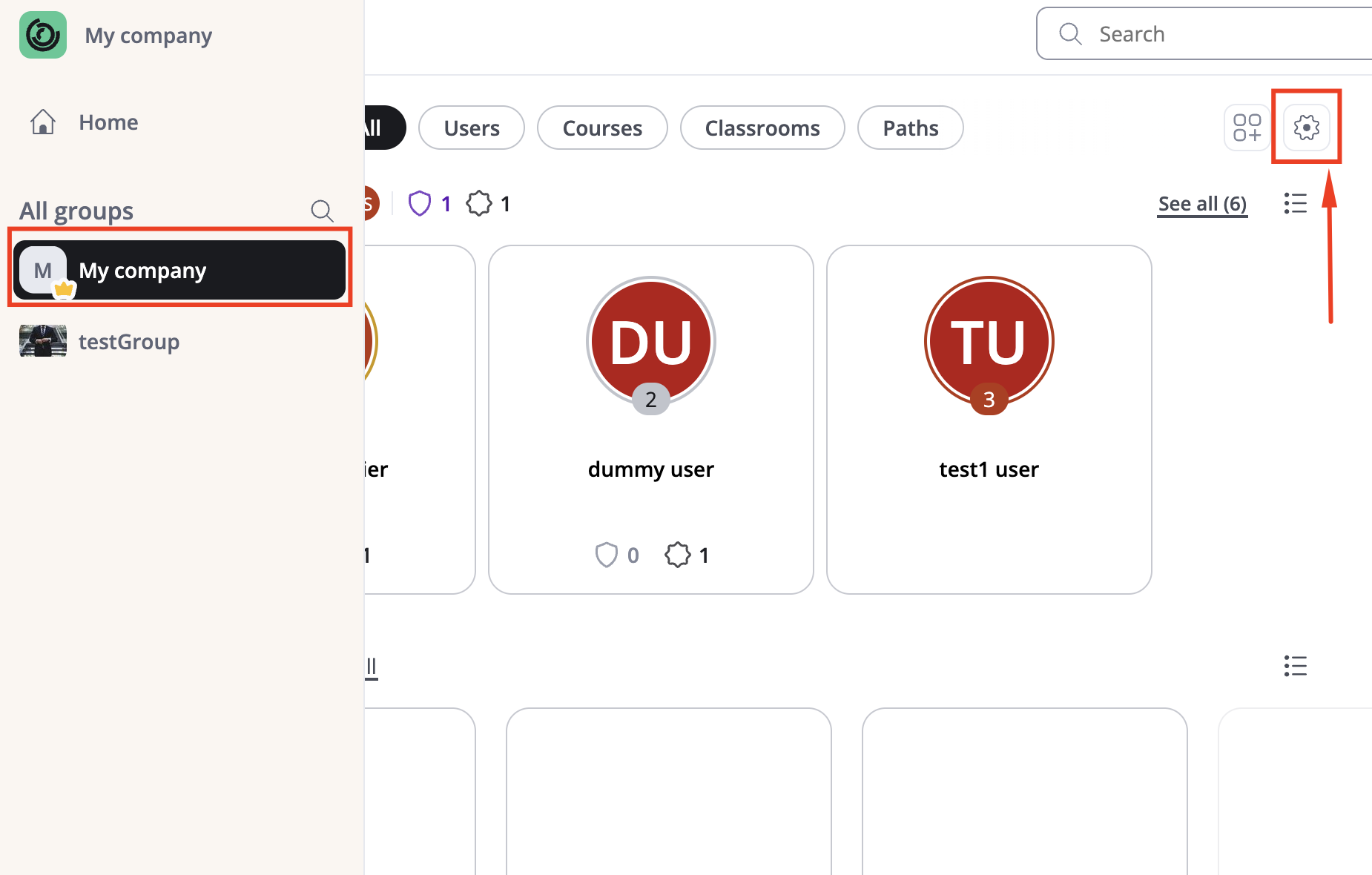
All Groups.Click on Settings in the top right corner.3
Configure API Key
From the left settings menu, select 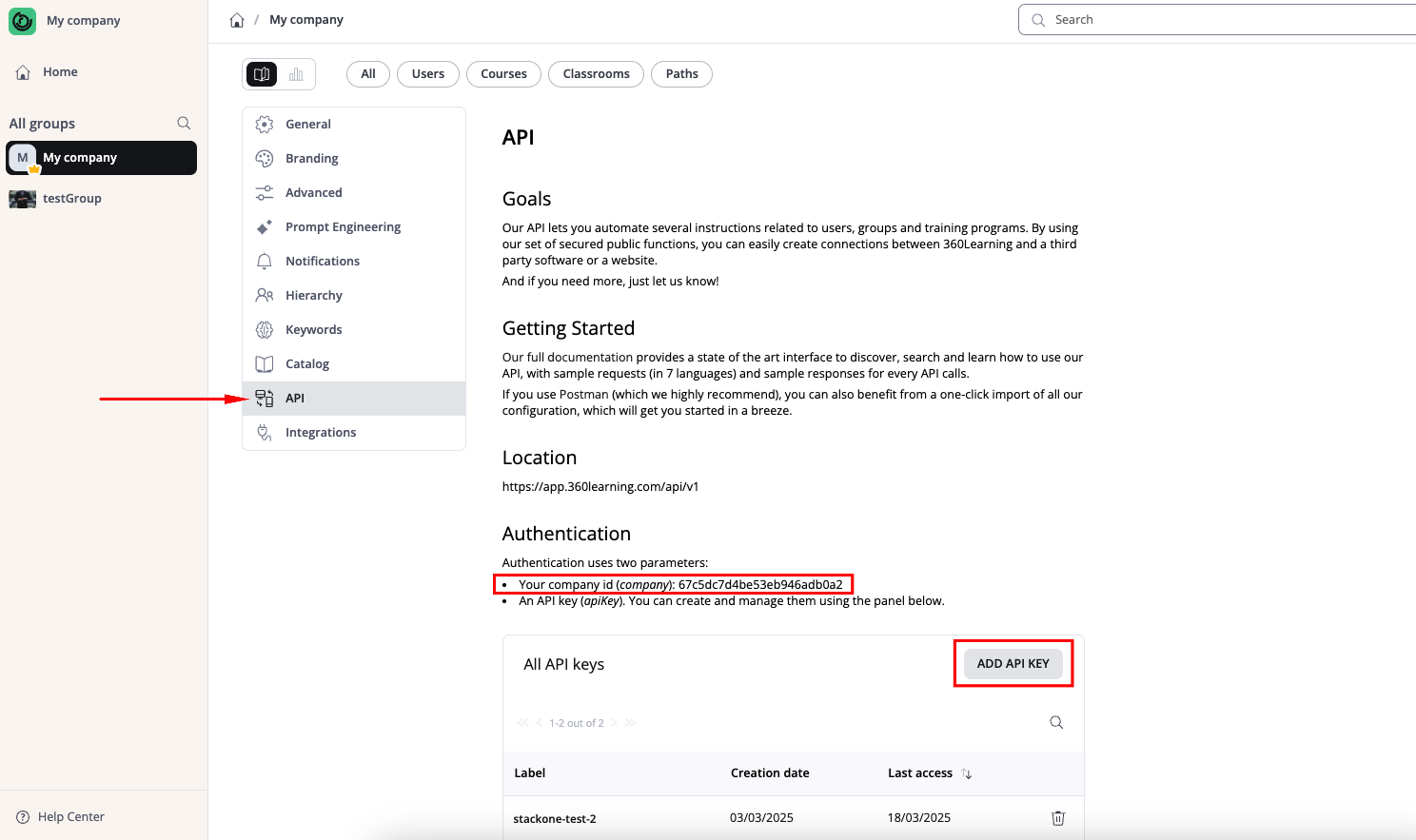
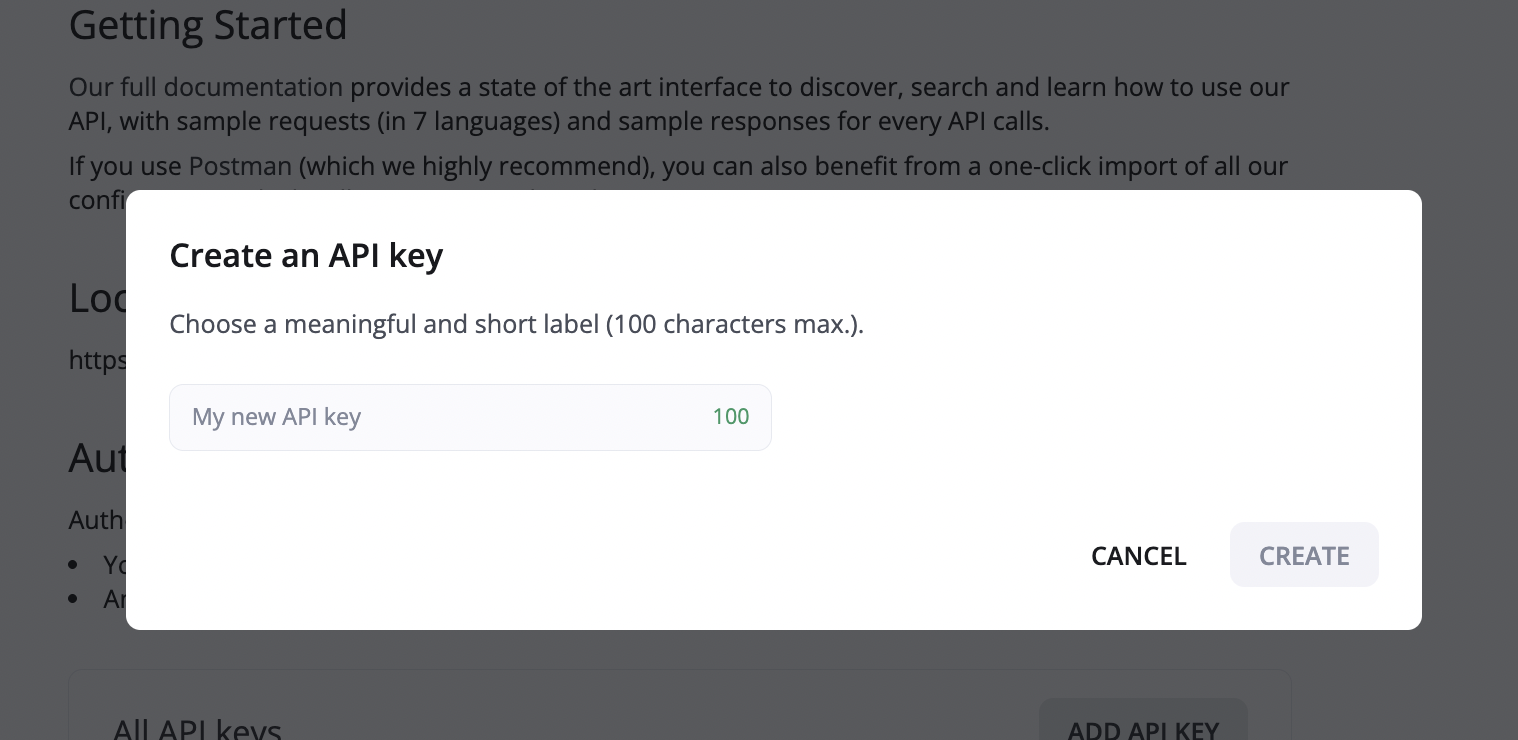
API.Locate the Company ID, in the Authentication section.Click Add API Key to create a new API key.API Key and click Create.Company ID and API Key for use in the next steps.4
Find Group ID
Select the desired group to find the 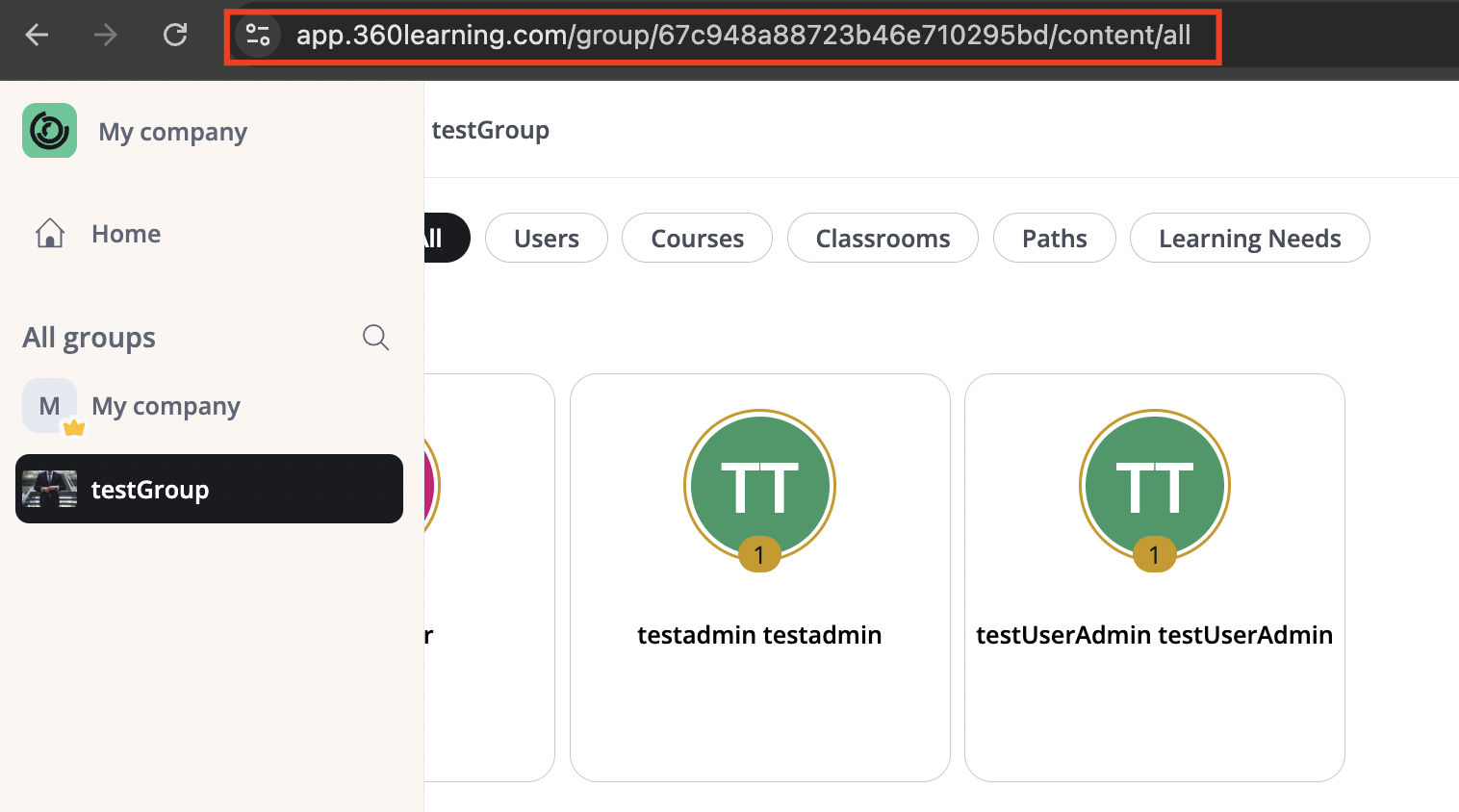
Group Id in the address bar.E.g. If your url is https://app.360learning.com/group/67c948a88723b46e710295bd/content/all, the Group Id is 67c948a88723b46e710295bd.5
Find User ID
Navigate to 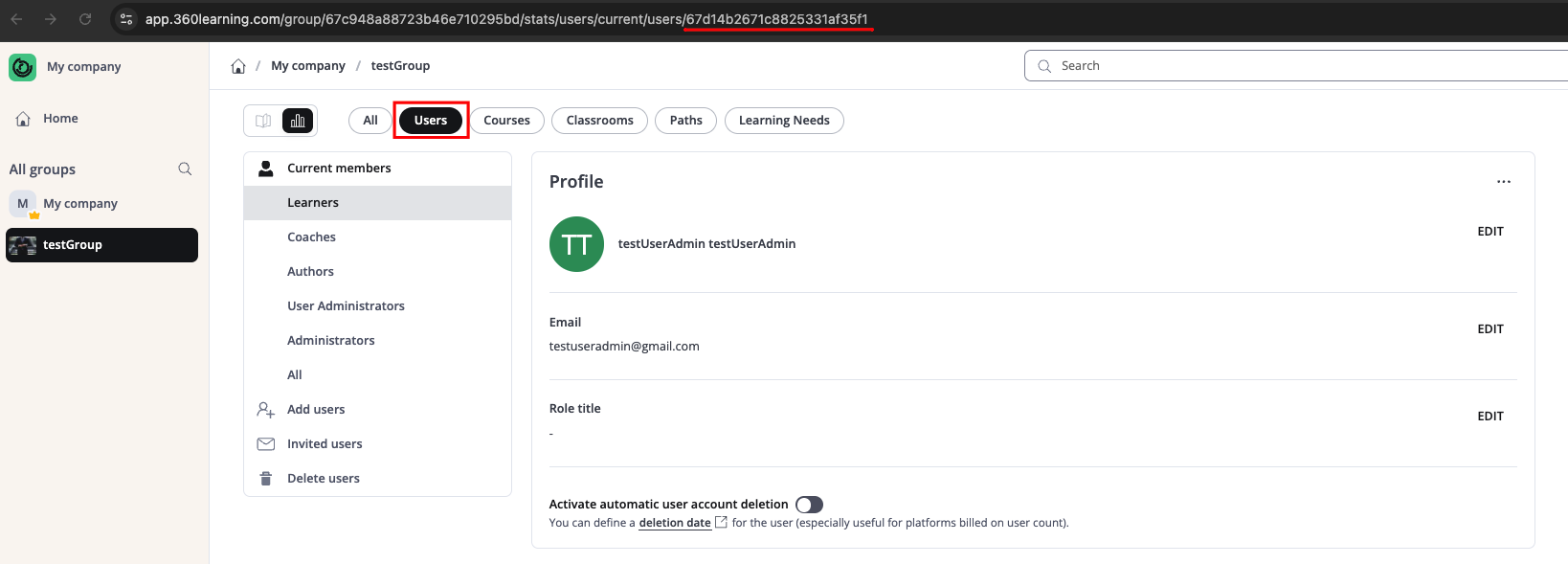
Group -> Users.Open the User Profile to find the User Id in the address bar.E.g. If your url is https://app.360learning.com/group/67c948a88723b46e710295bd/stats/users/current/users/67d14b2671c8825331af35f1, the User Id is 67d14b2671c8825331af35f1.Linking Your Account
You can use the Company ID and API Key to link your 360 Learning account.1
Link 360 Learning Account
In the modal enter the 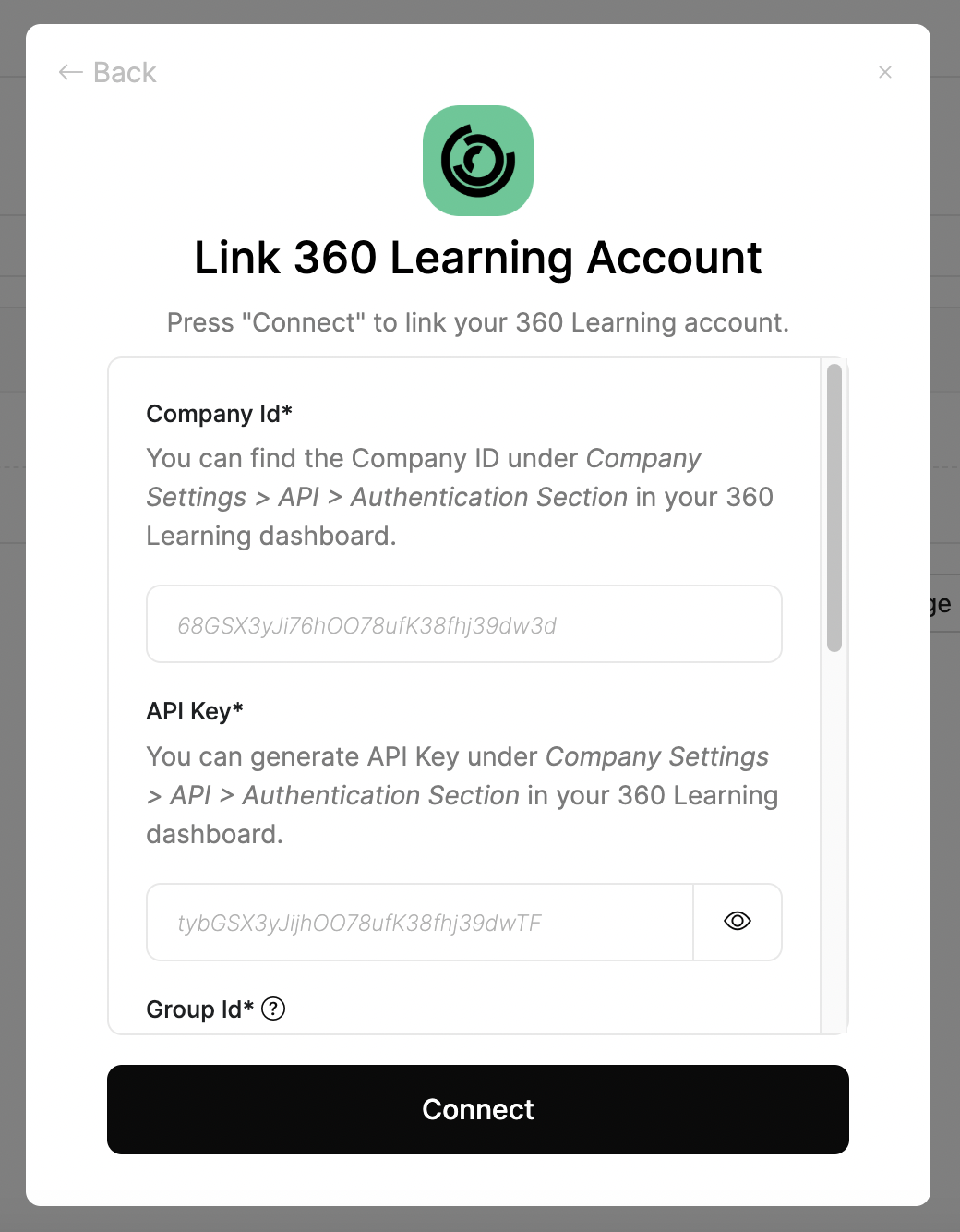
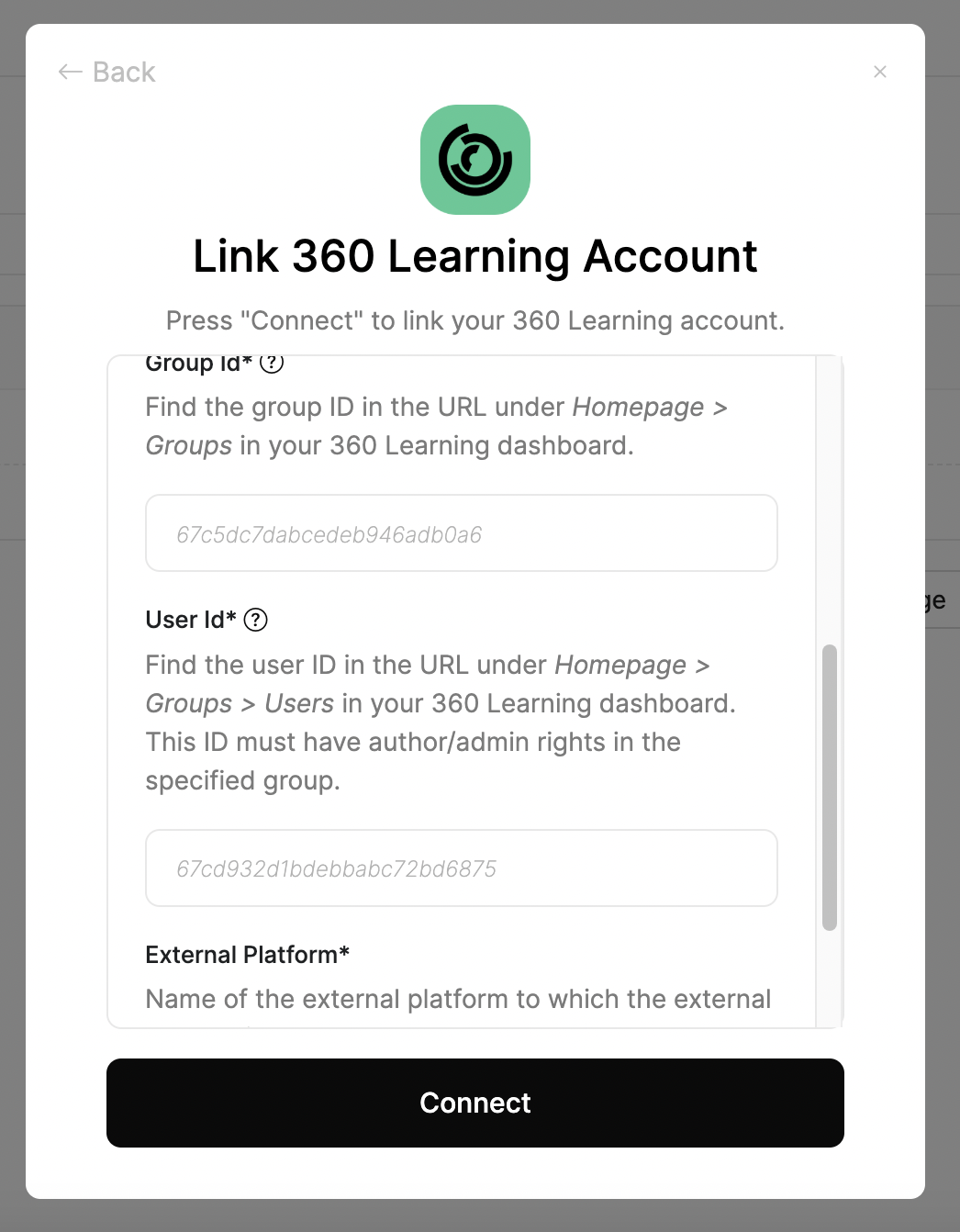
Company ID, API Key, Group Id, User Id and External Platform.Connect.SSO Configuration
Proper SSO (Single Sign-On) configuration is essential for the 360 Learning integration to work correctly. The configuration ensures that users are properly identified and matched between your platform and 360 Learning.Configuration Options
The SSO configuration should use the following approach:Custom Field Configuration
1
Set Custom Field
Configure a custom field called
lms_user_id and set it to the Email field value.2
Verify Custom Field
Ensure the
lms_user_id custom field is properly populated and accessible through the SSO configuration.Customer Responsibility
- Ensure the Email field is correctly populated in your user management system
- Verify that the SSO configuration matches the authentication method used by 360 Learning
- Test the SSO flow with a small group of users before full deployment
Congratulations, you’re all set! If you face any issues with the steps mentioned above, please contact us by emailing integrations@stackone.com. We’re always here to assist you!